This article will explain how to implement the Force24 Tracking Script to your External Form.
To do this navigate to the website settings via the Account Settings:

Click on your site and open up the forms section and click add website:

Once your website is added, you will need to ensure that our Tracking Script is implemented. To do this, you can follow this guide here
After your website is listed in Force24 and you have added our tracking script. You can either add a Force24 form made in our Form Builder, or, choose an External Form.
In this case, we are focusing on an External Form.
To do this, head to your site and scroll down to the Forms section:
Click 'Add Form'
 Select 'External Form'
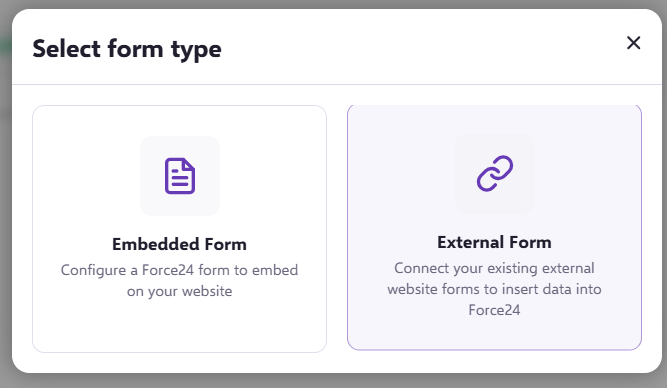
This will then direct you to the form configuration: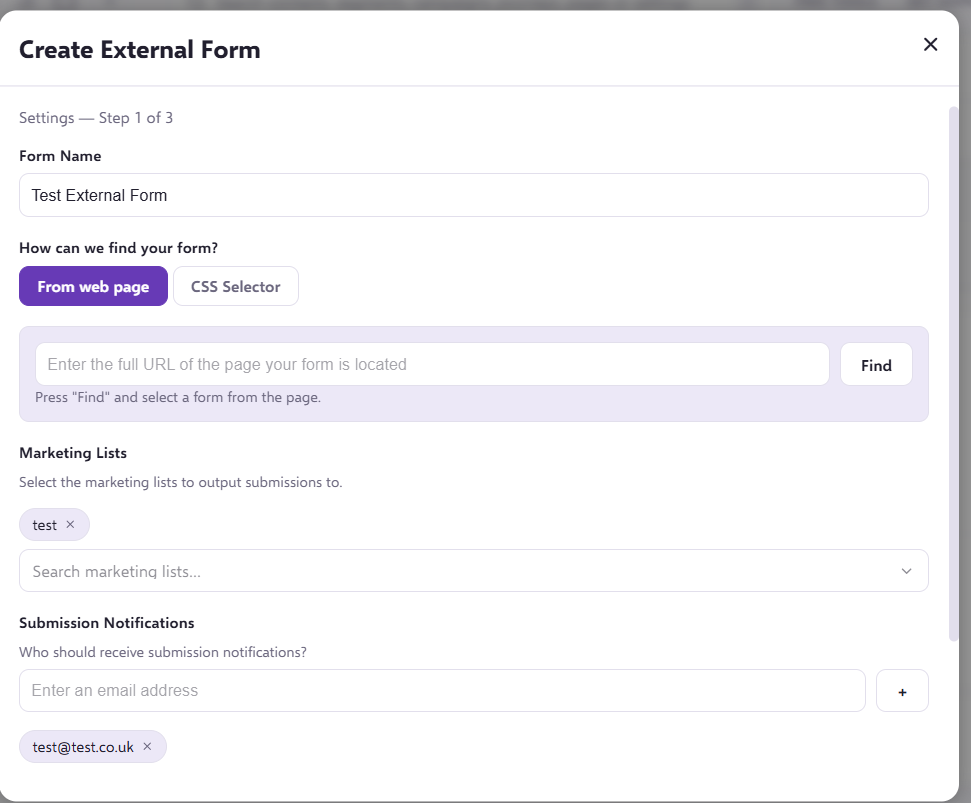
Step 1 of 3:
1. Select a name for your External Form.
2. Type in the URL of the page that your form sits in.
3. Select a Marketing List for your submissions to fall into.
4. Select one or multiple email addresses to receive a notification when the form receives a submission.
You can also choose whether to enable 'Include User Info On Form Post' and 'Enable Auto ID'
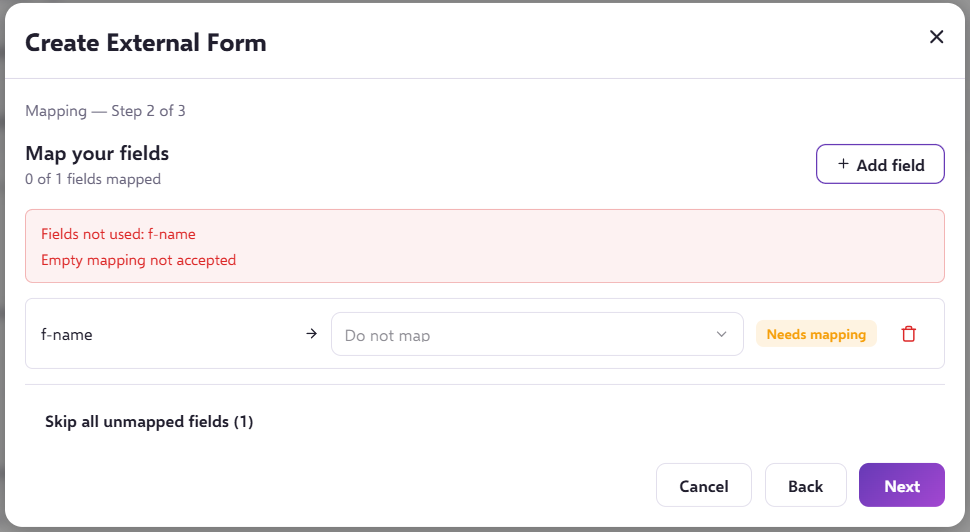
Step 2 of 3:
Next, we will need to map the fields on the form.
For example, if the form's field is 'f-name' this will map to 'First Name' in Force24
Step 3 of 3:
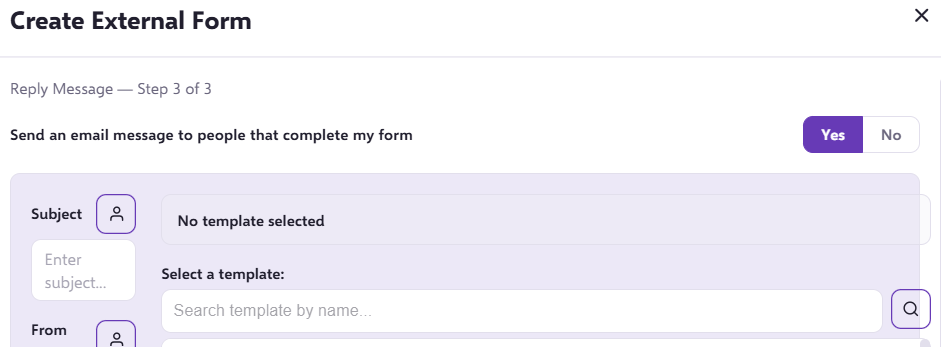
Finally, you can choose whether an email message is sent to the contacts who complete the form.
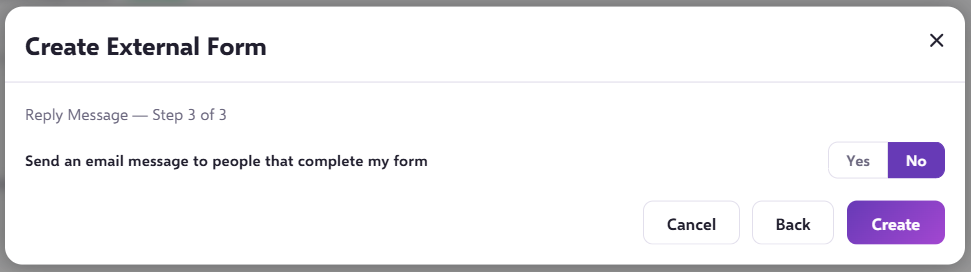
If yes, you can select a template to be sent to them once their submission has been recorded: