
Within your email, the 'Genius Blocks' feature presents you with the opportunity to further personalise the content of your emails. 'Genius Blocks' allow you to include snippets specific to contacts of different segments, all within the same Email Template.
Firstly, select the Email Template you wish to add 'Genius Blocks' to.
Hover over the snippet you wish to make a 'Genius Block' and the edit options below will appear:
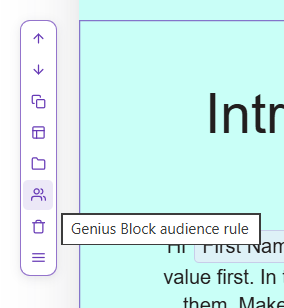
Select the icon with two people on it and the following 'Genius Block' pop up will appear, enabling you to manage which contacts can see the snippet you have selected.
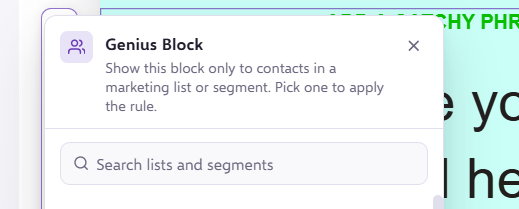
Now, in the prompted field, type and select your specified segment.
In the example below, the selected snippet would be visible to the 'Genius Block List' segment.
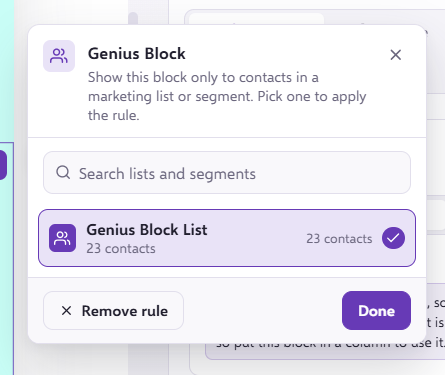
Once you are happy with options selected and the segment specified, click 'Done'. The snippet will be updated, and the 'Genius Block' will have been added to your template
.
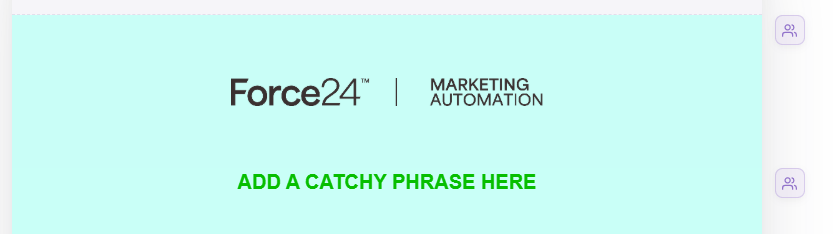
Within your template, any 'Genius Blocks' will be identified with the two people icon appearing on the right of the 'Genius Block' within the template.
You can also manage your Genius Blocks under the 'Audience' tab on the left when you have clicked onto the snippet;
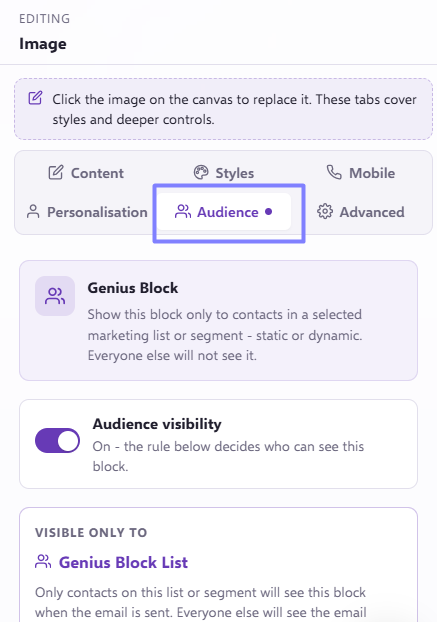
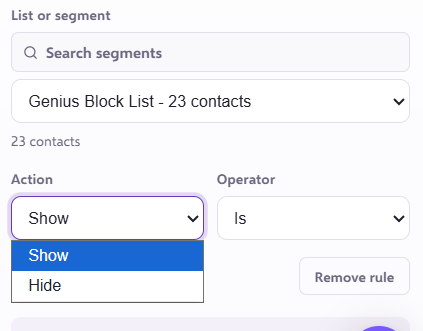
Here you can also stipulate whether you would like to 'Show' or 'Hide' the snippet to the specified Segment, by selecting the tabs at the bottom of the section
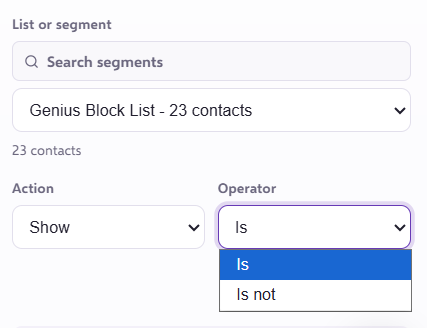
Select 'Is' or 'Is Not', dependant on whether you selected the 'Show' or 'Hide' tab and whether you wish the snippet to be visible or not to the specified Segment.
Once you are happy with the layout and content of your email, we would advice testing to ensure that your 'Genius Blocks' have been organised correctly.
You can follow the steps in this article- How to test genius blocks
If you have any questions, feel free to reach out to us through the live chat function available bottom right in your Force24 Platform. Our team is ready to assist you and provide support whenever you need it.